A Home Screen is one of the few interfaces you look at dozens of times a day, and iOS gives you more control over it than most people use. The order below is the one that actually works: set the surface first, then the widgets, then the details.
1. Start with a wallpaper, not a widget
Every widget you add sits on top of the wallpaper, so the wallpaper decides your palette. Dark, low-detail images work best: they let widget text stay legible without a heavy background behind it.
In iOS: Settings → Wallpaper → Add New Wallpaper. Pick something with one dominant colour and no busy centre — the middle of the screen is where widgets land.
In Novique, theme packs bundle a wallpaper-friendly gradient with matching widget colours, so this step and the next one are one tap.
2. Add your first widget
Touch and hold an empty spot on the Home Screen until the icons jiggle, tap Edit → Add Widget, then search for the app. Third-party widgets appear in the same list Apple’s do.
Add one widget, live with it for a day, then add the next. Home Screens go wrong when six widgets arrive at once and none of them earn the space.
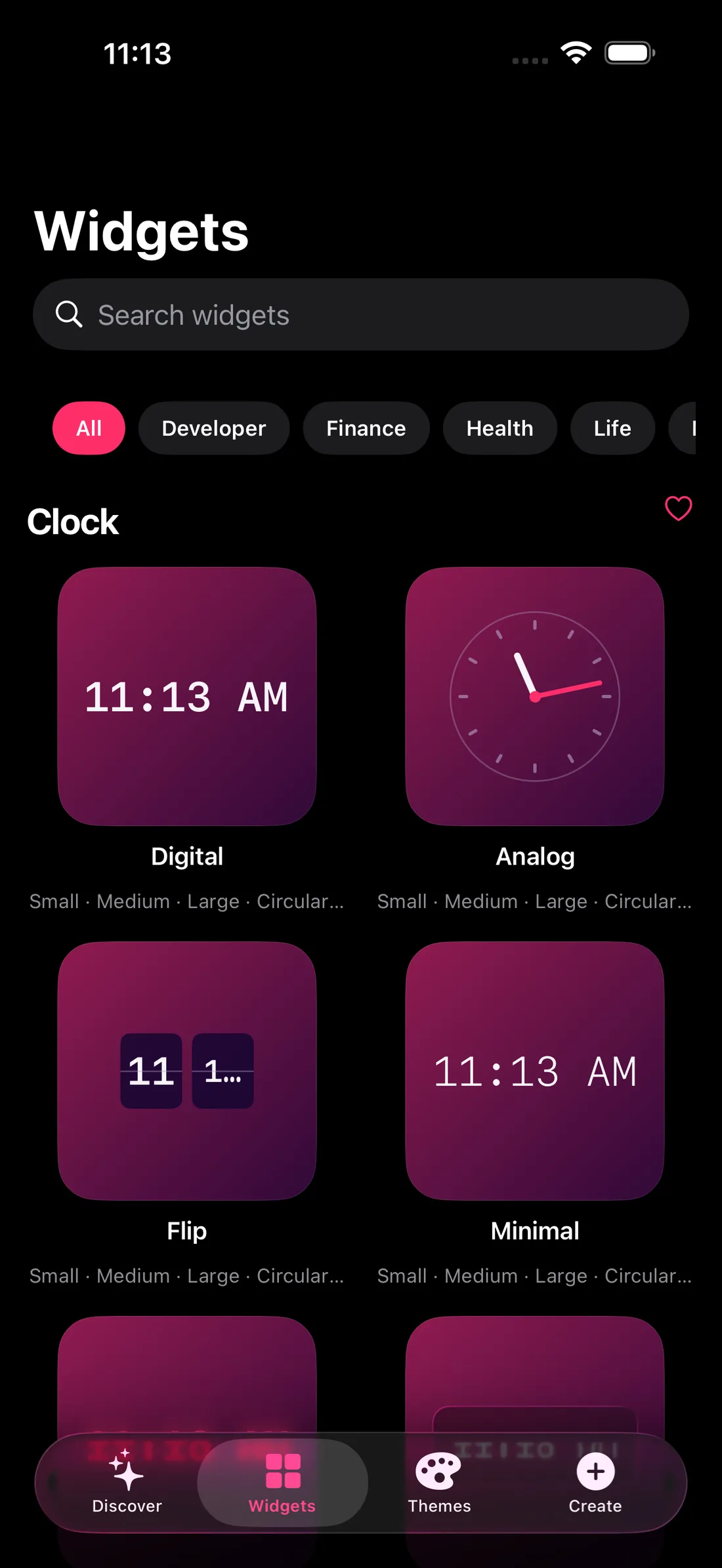
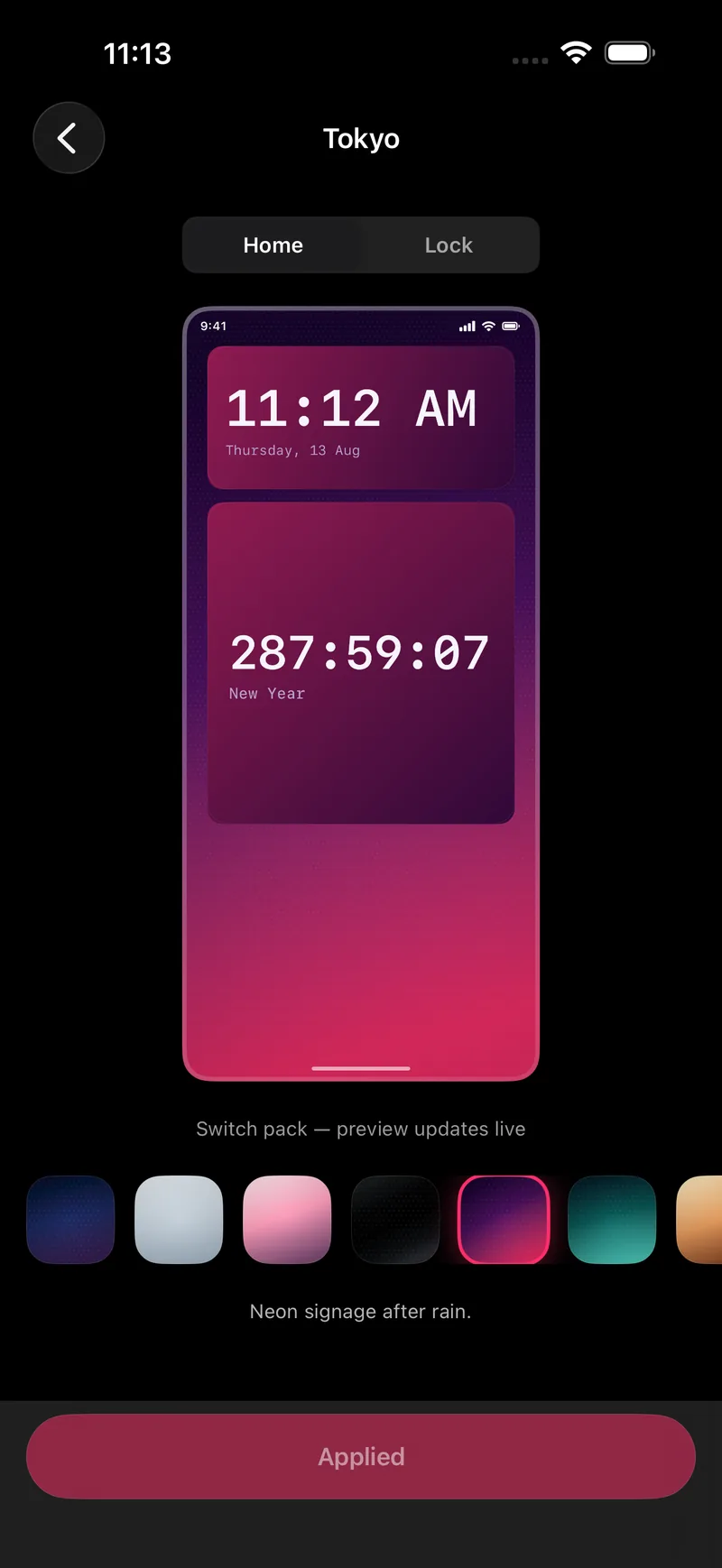
Left: browsing widget styles by category. Right: previewing a pack on a Home Screen mock before applying it.
3. Pick the right sizes
iOS widget sizes are not interchangeable. Match the size to how much the widget has to say.
- Small
- One number. Steps, temperature, a countdown.
- Medium
- A number plus context. Time and date, weather with a label.
- Large
- Lists and grids. A calendar month, a habit streak.
- Lock Screen
- Inline, circular and rectangular. Glanceable only.
Novique ships six sizes across its widget families, including the Lock Screen set, so a widget you like on the Home Screen usually has a Lock Screen counterpart.
4. Match the Lock Screen
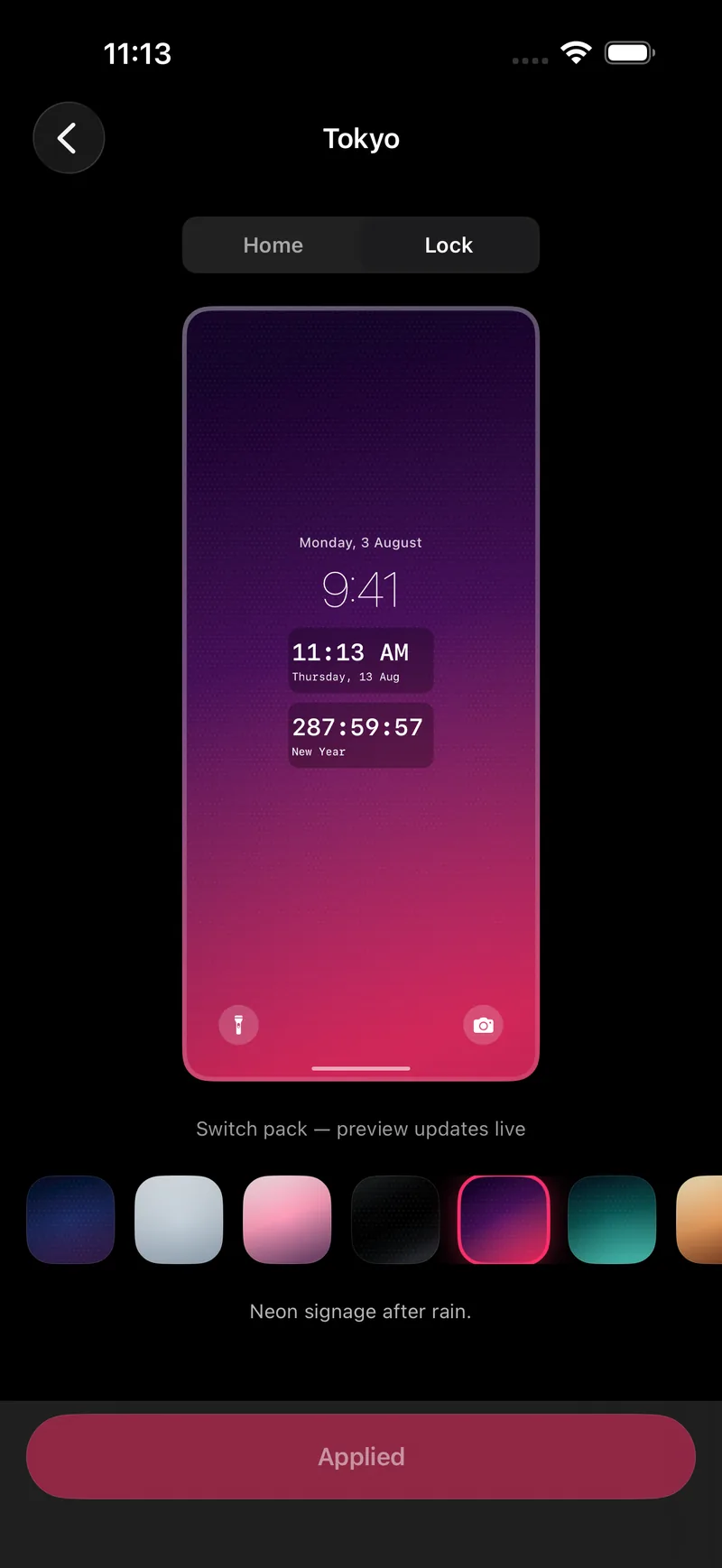
Touch and hold the Lock Screen, tap Customize, then the widget area under the clock. This is the screen you see most, and it is the one most people never touch.
Keep the two screens in the same colour family. A cool Lock Screen and a warm Home Screen read as an accident.
5. Cut the clutter
Move everything you do not open daily into the App Library: touch and hold an icon, tap Remove App → Remove from Home Screen. The app stays installed and searchable.
Then use one page. Swiping between five pages of icons is slower than pulling down and typing three letters.
The finished test is simple: can you find what you need without reading? If yes, stop editing.
FAQ
Can I change app icons without shortcuts?
Not directly. iOS lets developers offer alternate icons for their own apps, but there is no system setting to restyle someone else’s icon. Custom icons made through Shortcuts open a redirect, which adds a delay.
Do widgets drain the battery?
iOS budgets how often a widget may refresh, so a clock or countdown costs very little. Widgets that fetch data refresh less often by design.
Which iOS version do I need?
Home Screen widgets arrived in iOS 14 and Lock Screen widgets in iOS 16. Novique requires iOS 17 or later.
Does Novique need an account?
No. There is no backend and no sign-up. Seven widget families and ten theme packs are free forever, and Pro is covered by Family Sharing across iPhone, iPad and Mac.