Every other Novique widget is built in Swift and ships with the app. A script widget is the one kind you build yourself: a JavaScript file that constructs a small widget tree — text, dates, stacks, spacers — the same way Scriptable widgets do, because Novique’s script API is a deliberate subset of Scriptable’s.
1. What a script widget is
There are exactly three script widget kinds you can place on your Home Screen — My Script 1, My Script 2 and My Script 3. You can write or import as many scripts as you like; which script each of the three slots runs is something you choose inside the app, not on the widget’s own configuration sheet.
Why three fixed slots instead of one script widget per script: iOS doesn’t reliably deliver a placed widget’s own configuration to it, so “which script does this widget run” has to live in the app’s own settings instead — which is also why a script can’t read a per-widget parameter you typed into its Edit Widget sheet.
2. Write your first script
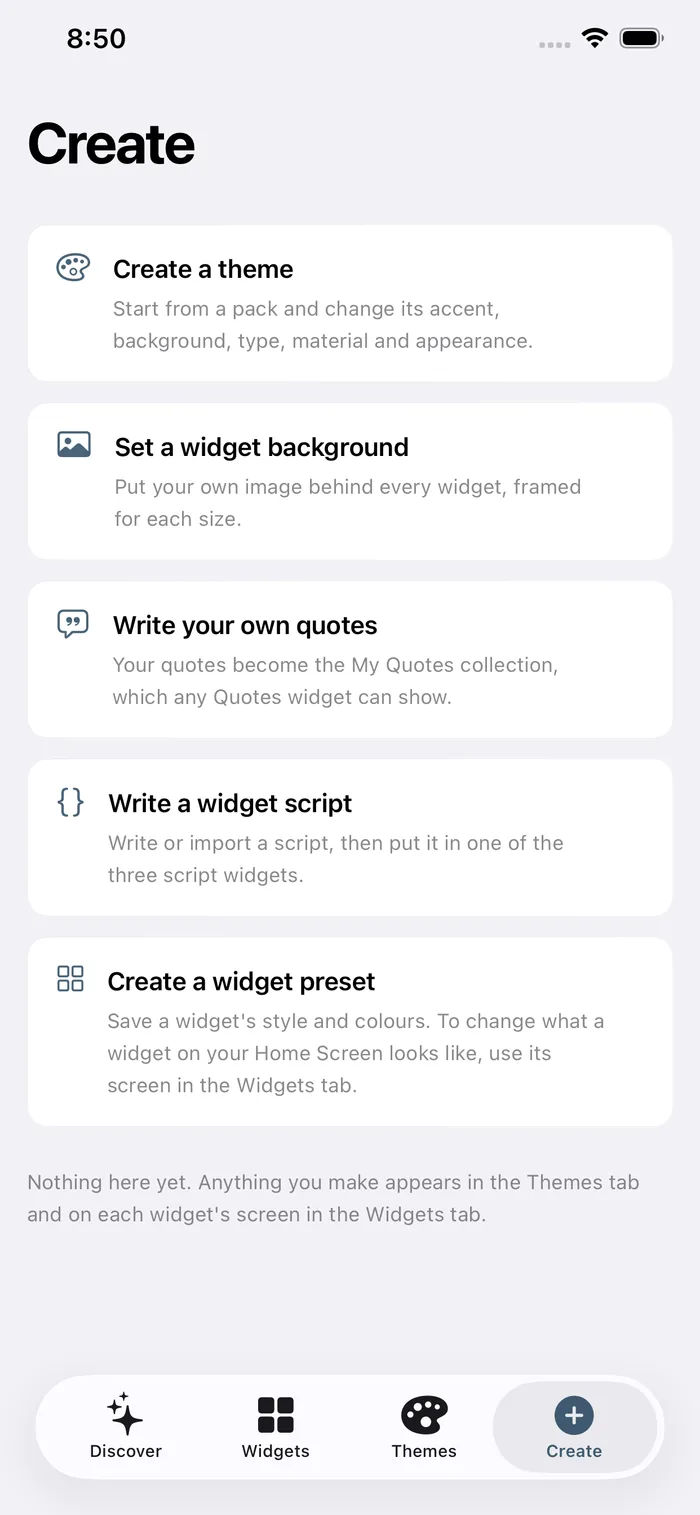
In Novique: Create → Write a widget script → + → Write a script. Give it a name, paste this in, and tap Run to preview it before saving:
const w = new ListWidget()

const title = w.addText("Hello, Novique")
title.font = Font.boldSystemFont(18)
title.textColor = noviqueTheme.foreground()

w.addSpacer(6)

const subtitle = w.addText("My first script widget")
subtitle.font = Font.systemFont(13)
subtitle.textColor = noviqueTheme.secondary()

w.addSpacer()

Script.setWidget(w)
Script.setWidget(w) is the one line every script needs — nothing renders without it. Tap Save once the preview looks right.
3. Put it on your Home Screen
Back on the Scripts screen, the Widget slots section has a picker for My Script 1, 2 and 3 — choose your new script for one of them.
Then, on your Home Screen: touch and hold an empty spot, Edit → Add Widget, search Novique, and place My Script 1 (or 2, or 3) — whichever slot you assigned it to.
4. The widget-building API
A script builds a widget imperatively — no template, no return value. These are the pieces you have:
- ListWidget
- The root of every script. new ListWidget() gives you a container with addText, addDate, addSpacer and addStack — the same four building blocks, nested however deep you need.
- WidgetText
- w.addText("…") returns one. Set .font, .textColor and .lineLimit on it.
- WidgetDate
- w.addDate(date) returns one that keeps itself current with no reload — call .applyTimeStyle(), .applyDateStyle(), .applyRelativeStyle(), .applyOffsetStyle() or .applyTimerStyle() to pick the format.
- WidgetStack
- w.addStack() nests a row or column. .layoutHorizontally() / .layoutVertically(), .spacing, .setPadding(top, leading, bottom, trailing), .cornerRadius.
- Color / Font
- new Color("#RRGGBB") or Color.white()/.black()/.red()/.green()/.blue()/.gray(). Font.systemFont(size), Font.mediumSystemFont(size), Font.boldSystemFont(size).
- noviqueTheme
- noviqueTheme.accent(), .foreground(), .secondary() and .surface() — colours that follow whichever theme pack and appearance (light/dark) the widget is drawn in. Prefer these over a literal hex.
- Script.setWidget(w)
- The last line of every script. Nothing renders without it.
- config.widgetFamily
- The placed widget's size — "small", "medium" or "large" — so one script can lay out differently per size.
5. A complete example
This is one of Novique’s own bundled scripts, unmodified — a clock with a day-progress bar. Copy it in as a starting point and change what it draws.
const now = new Date()

const WEEKDAYS = ["Sunday", "Monday", "Tuesday", "Wednesday", "Thursday", "Friday", "Saturday"]
const MONTHS = ["Jan", "Feb", "Mar", "Apr", "May", "Jun", "Jul", "Aug", "Sep", "Oct", "Nov", "Dec"]
const dateLine = WEEKDAYS[now.getDay()] + " " + now.getDate() + " " + MONTHS[now.getMonth()]

// Fraction of the day elapsed, as a 10-cell bar.
const minutesToday = now.getHours() * 60 + now.getMinutes()
const fraction = minutesToday / 1440
const filled = Math.round(fraction * 10)
const bar = "█".repeat(filled) + "░".repeat(10 - filled)

const w = new ListWidget()
w.spacing = 0

// addDate with a time style, not addText with a formatted string — a WidgetDate
// keeps itself current with no reload, which is the only way a script shows live time.
const time = w.addDate(now)
time.applyTimeStyle()
time.font = Font.boldSystemFont(40)
time.textColor = noviqueTheme.foreground()

const date = w.addText(dateLine)
date.font = Font.systemFont(13)
date.textColor = noviqueTheme.secondary()

w.addSpacer()

const meter = w.addStack()
meter.layoutHorizontally()
meter.spacing = 6

const bars = meter.addText(bar)
bars.font = Font.systemFont(11)
bars.textColor = noviqueTheme.accent()

meter.addSpacer()

const pct = meter.addText(Math.round(fraction * 100) + "%")
pct.font = Font.systemFont(11)
pct.textColor = noviqueTheme.secondary()

Script.setWidget(w)
6. Fetching live data
Request makes one GET request and awaits it — loadJSON() parses the response for you:
const ENDPOINT = "https://api.coingecko.com/api/v3/simple/price"
  + "?ids=bitcoin&vs_currencies=usd&include_24hr_change=true"

const w = new ListWidget()
w.spacing = 4

try {
  const data = await new Request(ENDPOINT).loadJSON()
  const price = data.bitcoin.usd

  const label = w.addText("Bitcoin")
  label.font = Font.systemFont(13)
  label.textColor = noviqueTheme.secondary()

  const value = w.addText("$" + Math.round(price).toLocaleString())
  value.font = Font.boldSystemFont(26)
  value.textColor = noviqueTheme.foreground()
} catch (error) {
  // A network failure states itself, rather than an empty widget that looks
  // identical to one still loading.
  const message = w.addText("Couldn't update")
  message.font = Font.systemFont(13)
  message.textColor = noviqueTheme.secondary()
}

Script.setWidget(w)
A request that hangs is cancelled after 10 seconds. Always wrap it in try/catch — a network failure should say so, not render an empty widget that looks identical to one still loading.
7. What’s off-limits
A script widget runs sandboxed, on-device, inside the same memory budget as every other Novique widget. That rules out:
- Images —
Image,SFSymbolandDrawContextaren’t implemented. A script widget draws text, dates, stacks and spacers only. - Interactivity — no buttons, no App Intents, no tap actions inside the widget. Tapping it always opens Novique.
- Non-GET network requests — POST, PUT and friends throw. Only
httpandhttpsURLs are reachable at all. - Dynamic code —
eval, theFunctionconstructor andWebAssemblyare blocked outright — an App Store requirement for any app that runs user-supplied code, not a missing feature. - A custom background — a script widget always uses your theme’s own surface, like every other Novique widget. Setting
backgroundColoris accepted but ignored. - Lock Screen and StandBy — script widgets are Home Screen only, in small, medium and large.
FAQ
Is this really free?
Yes. Script widgets are not a Pro feature — writing, importing and running scripts costs nothing, in all three slots.
Can I write more than three scripts?
Yes — write or import as many as you like in My Scripts. Only three can run on your Home Screen at once, because each is tied to a fixed widget kind (My Script 1, 2 and 3), and you choose which script each one runs.
Why can't I add my own icon or photo to a script widget?
Images aren't available to scripts yet — see "What's off-limits" above. A script widget always uses your theme's own surface, the same as every other Novique widget.
My script works in the preview but not on my Home Screen. Why?
Check Settings → Novique isn't restricted from Background Refresh, and that the script doesn't depend on args.widgetParameter — Novique has no per-widget configuration sheet, so that's always null. Assign a specific script to a slot in My Scripts instead.
Are Scriptable widgets compatible?
Many are. Novique's API is a deliberate subset of Scriptable's widget-building classes (ListWidget, WidgetText, Font, Color and friends), so a Scriptable widget that only uses those — no images, no Siri shortcuts, no notifications — often runs unmodified. Anything from Scriptable's wider API (Image, DrawContext, Keychain, Alert, and more) isn't implemented and will throw.