System Dark Mode vs. a dark pack
iOS’s own Appearance setting (Settings → Display & Brightness) tells apps and widgets to draw in their dark variant, but a widget without one just dims or guesses. That’s why a Home Screen with Dark Mode switched on can still look like a collection of slightly-mismatched greys.
A dark theme pack is a different thing: the colours are chosen for dark from the start — not a dimmed version of a light palette — so every widget in the pack lands on the same near-black rather than each guessing its own.
True black and OLED
Every iPhone since the 12 uses an OLED display, where a truly black pixel is switched off rather than lit dim — so the closer a pack’s surface sits to true black, the more of that battery saving is real rather than cosmetic. A dark-grey or navy “dark mode” barely moves the needle next to a genuinely near-black one.
Five packs to start with
- Dark — true black, ink-flat surfaces, quiet contrast. If the OLED battery saving is the actual goal rather than just a dark look, this is the pack built around it.
- Black Titanium — machined greys over true black, closer to the finish on a Pro-model iPhone than any other pack in the catalogue.
- Midnight — deep indigo rather than black, with glass-surfaced widgets. Reads as dark and is the pack most Novique users apply first, but it trades some of the OLED saving for colour.
- Space — deep field violet with starlight accents, close in darkness to Midnight but cooler and more purple than indigo.
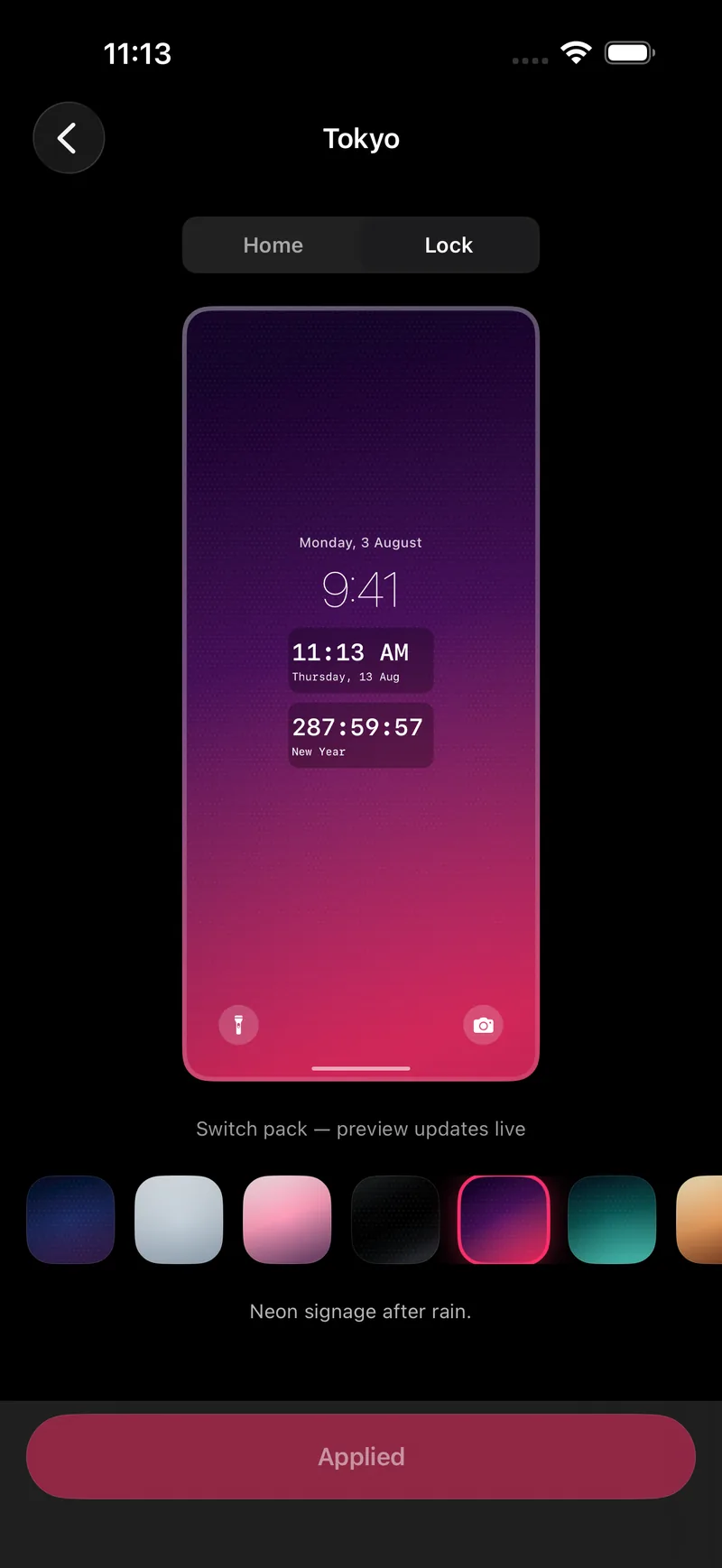
- Tokyo — neon signage after rain: a dark purple base that opens into bright magenta-pink toward the edge. The least battery-driven choice here, and the most likely to actually get noticed.
The one thing that goes wrong
A single widget from a different app, still in its own light or default colours, sitting between two dark Novique widgets — it reads as a bright hole in an otherwise consistent screen. A genuinely dark Home Screen means every widget on it commits to the same near-black, not just the ones from one app.
The Lock Screen at night
The Lock Screen is the screen you actually see in the dark, which makes it the more important half of this to get right. Keep the same pack applied there as the Home Screen — a dark Home Screen behind a light or high-brightness Lock Screen is the fastest way to undo the whole point of going dark in the first place.
FAQ
If I turn on iOS Dark Mode, do my widgets go dark automatically?
A widget without its own theme follows the system setting, which is why default widgets can look inconsistent — some redraw cleanly in dark, others just dim. A theme pack’s colours are chosen for dark from the start, so they don’t depend on iOS guessing correctly.
Does a dark theme actually save battery?
Only where the display is OLED (iPhone 12 and later, all Pro models) and the colour is genuinely near-black — an OLED pixel showing black draws almost no power, while a grey, indigo or violet pixel still lights up. Dark is Novique’s only pack built around literal true black; Black Titanium reaches true black in part of its gradient. The rest read as dark without being that dark.
Why does my dark Home Screen still look inconsistent?
Usually one widget from a different app sitting between two Novique widgets, still in its own default colours. A dark screen depends on everything on it agreeing on the same near-black, not just each Novique widget individually.
Is there a difference between Midnight and Dark?
Yes, more than the names suggest. Dark is built around literal true black with an ink-flat surface; Midnight is deep indigo — noticeably more colour, less black. Put them side by side before choosing if OLED battery life is the actual goal, not just a dark-looking screen.